Stop searching and start asking – Using Cadmatic AI for instant answers to documentation questions

For years, we’ve relied on traditional search tools to navigate technical documentation. They helped narrow down massive manuals into lists of results. But the burden was still on you to figure it out from there.
With AI built into documentation, you no longer need to scan and dig for answers. Now, you can skip the scanning and go straight to the answer. Our new Cadmatic AI gives you instant and accurate contextual responses inside the documentation. Instead of listing links, it gives you a clear, usable answer. And if you want more context, the links are still there.
Why this is a big deal
Traditional documentation tools work best for power users, the ones who know the right keywords and where to look. But if you’re not 100% sure how something’s labeled or structured, searching becomes guesswork. This slows you down and breaks focus.
Cadmatic AI removes these barriers. It helps every user, regardless of experience, get what they need faster, with less friction. It’s built into our official, verified documentation and constantly refined to improve accuracy. What’s best is that it’s not here to replace expertise. It’s here to support you and give you the clarity to move forward, confidently.
A real example: faster weld reports in CADMATIC Hull
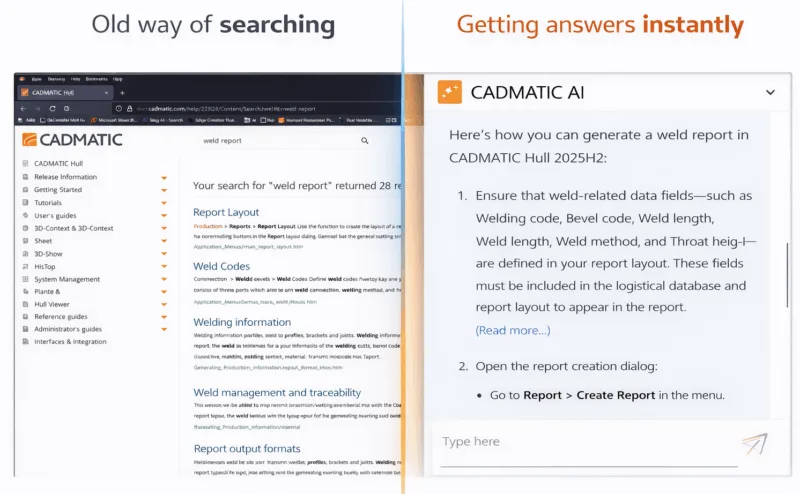
Let’s say you need to generate a weld report in CADMATIC Hull 2025H2. Before, you’d type a few search terms, dig through multiple pages, and piece together the steps. This can take a significant amount of time, depending on how experienced you are.
And now? Just ask Cadmatic AI and this is what you get:

You’re asking how to generate a weld report from CADMATIC Hull 2025H2. This relates specifically to CADMATIC Hull (version 2025H2).
Here’s how you can generate a weld report in CADMATIC Hull 2025H2:
- Ensure that weld-related data fields—such as Welding code, Bevel code, Weld connection, Weld length, Weld method, and Throat height—are defined in your report layout. These fields must be included in the logistical database and report layout to appear in the report. (Read more…)
- Open the report creation dialog:
- Go to Report > Create Report in the menu.
- In the Choose Selection Criteria dialog, select the appropriate logistical selection menu.
- Define the parts to include in the report using selection criteria (e.g., block, date, etc.). (Read more…)
- In the Create Report dialog:
- Choose the report layout that includes the weld data fields you defined earlier.
- Select the desired output format: XLSX, CSV, RTF, or XLSM. (Read more…)
- Execute the report:
- Click Create and View New Report to generate and view the report.
- Alternatively, use Print Current Report or Setup & Print Current Report to print it. (Read more…)
Summary:
- Make sure your report layout includes weld-specific fields.
- Use the Report > Create Report function to select parts and layout.
- Choose output format and generate the report.
Let me know if you’d like a step-by-step walkthrough for configuring the report layout or selecting specific weld data!
From static to smart
This is just one example. With Cadmatic AI, documentation transforms from a static reference into an active assistant. It helps you get more done with fewer steps. This translates into faster answers, fewer clicks and more time for actual design work.