Release Highlights 2026H2
Outfitting / 3D Plant Design
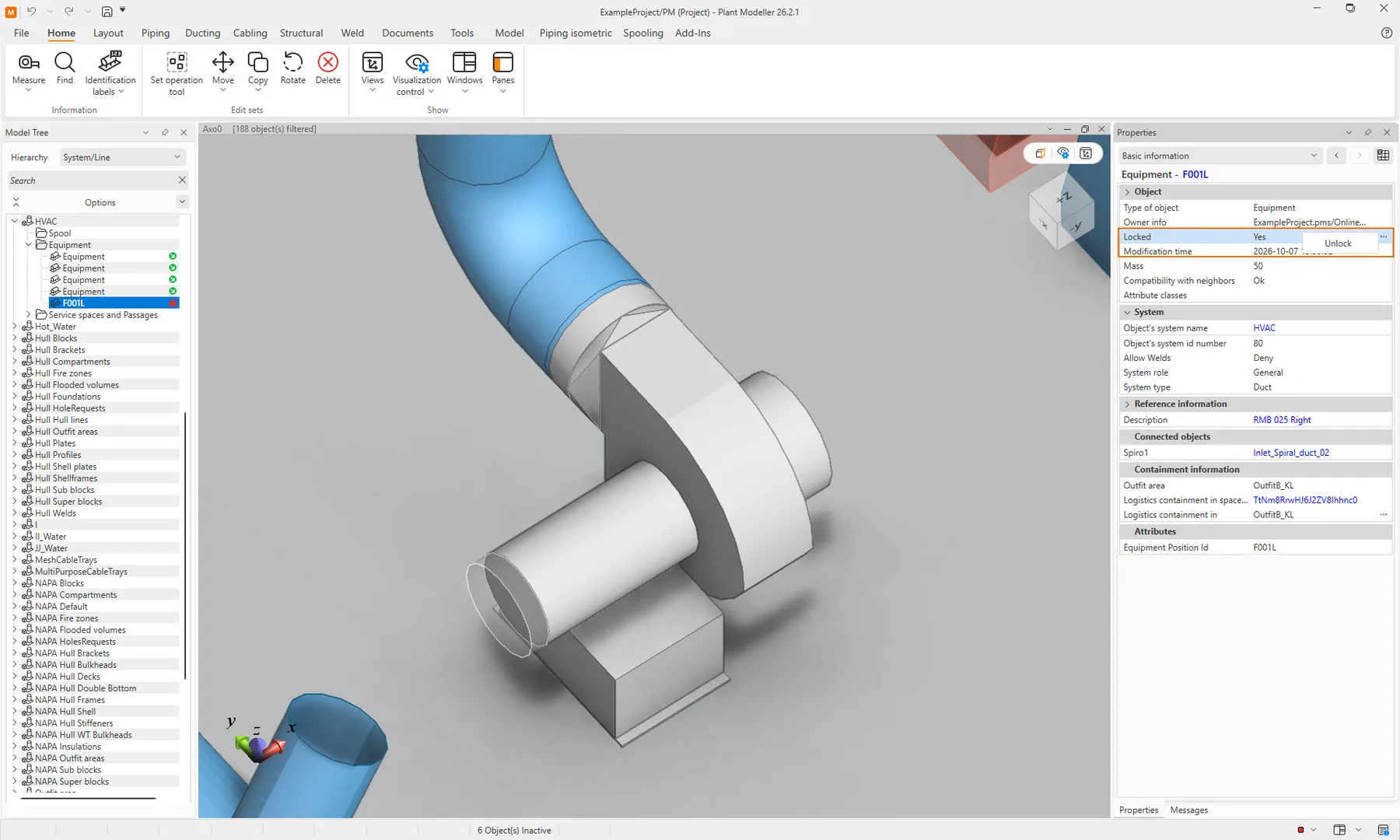
Lock design work once it’s approved
Protect approved design work from accidental or unauthorized changes. Groups, model objects, main documents, drawings and P&ID diagrams can now be locked. Administrators grant permissions to lock and to remove locks per user profile. Lock icons appear in all object lists. Released work stays as it was released until a permitted user removes the lock.
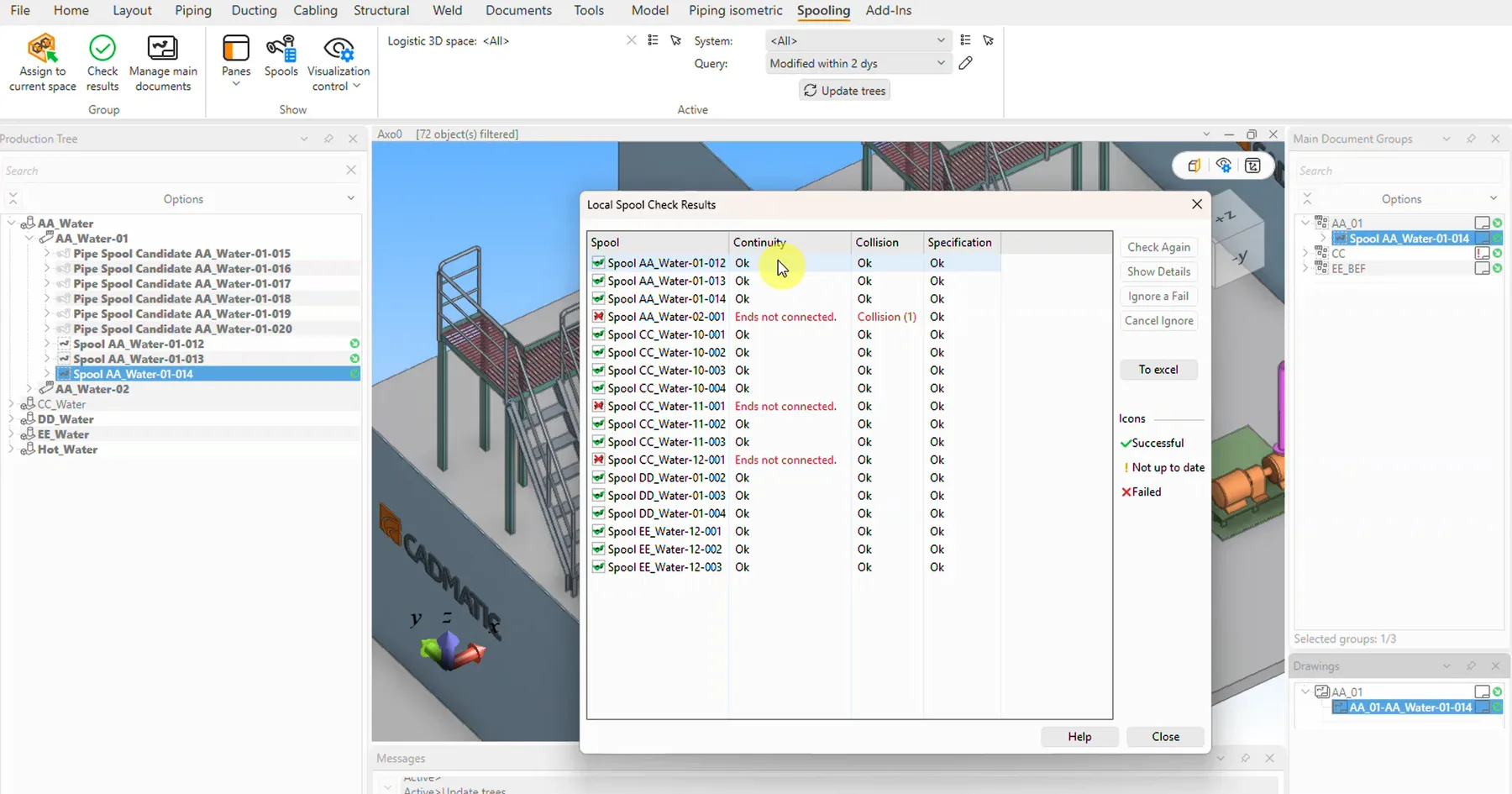
Pipe spools in a clear tree structure
Create and manage pipe spools with ease in a tree structure. Spools and their drawings now sit side by side with the model, so you can create spools and add them to main documents. Your project admin will set if this new tree structure or the prior list-based Pipe spools tab is displayed.
P&ID
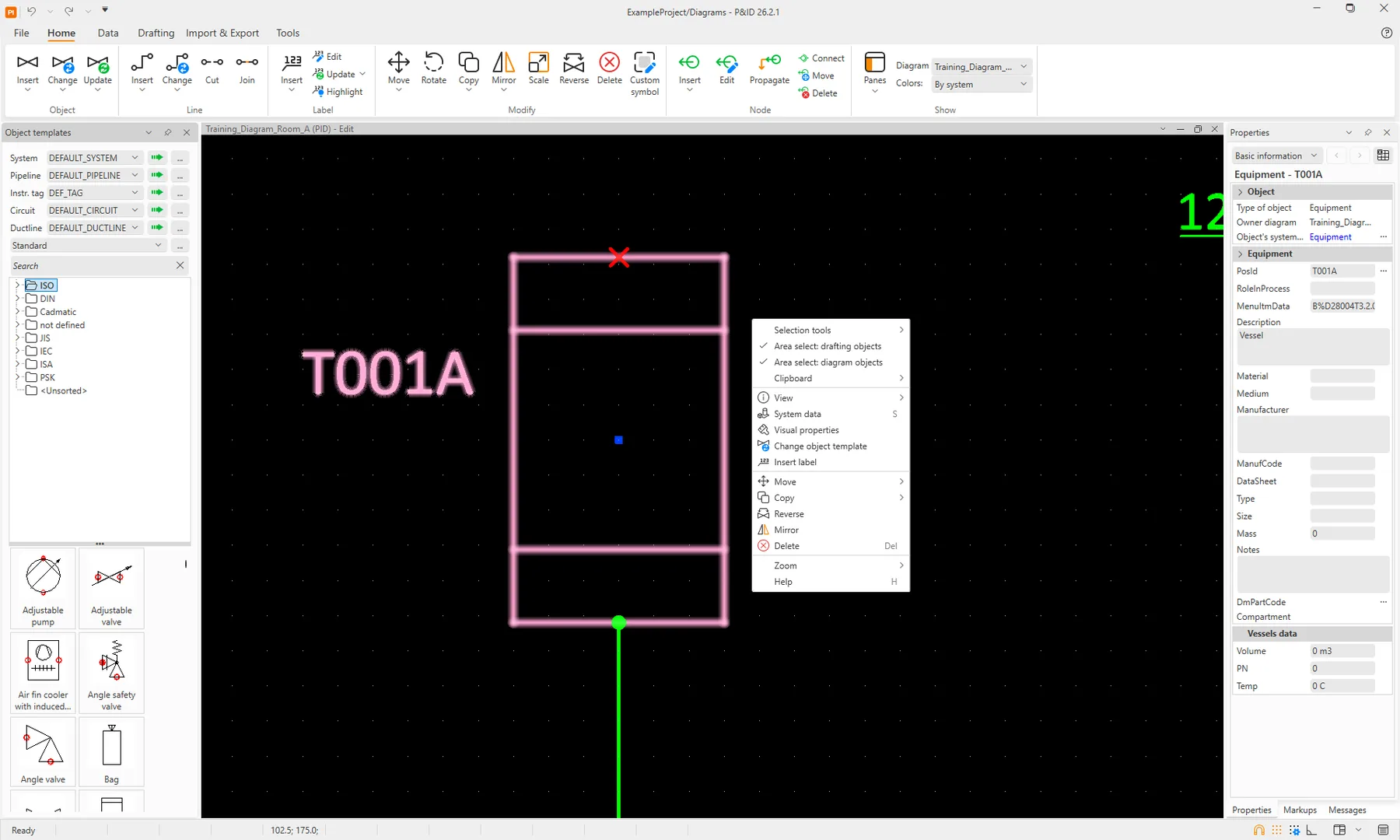
Context-based object actions
2D views and their contents are now much easier to manage with immediate access to most often needed commands and options. Pan, rotate, and zoom without focusing the cursor in the view. You no longer press Esc to release the cursor from the diagram view.
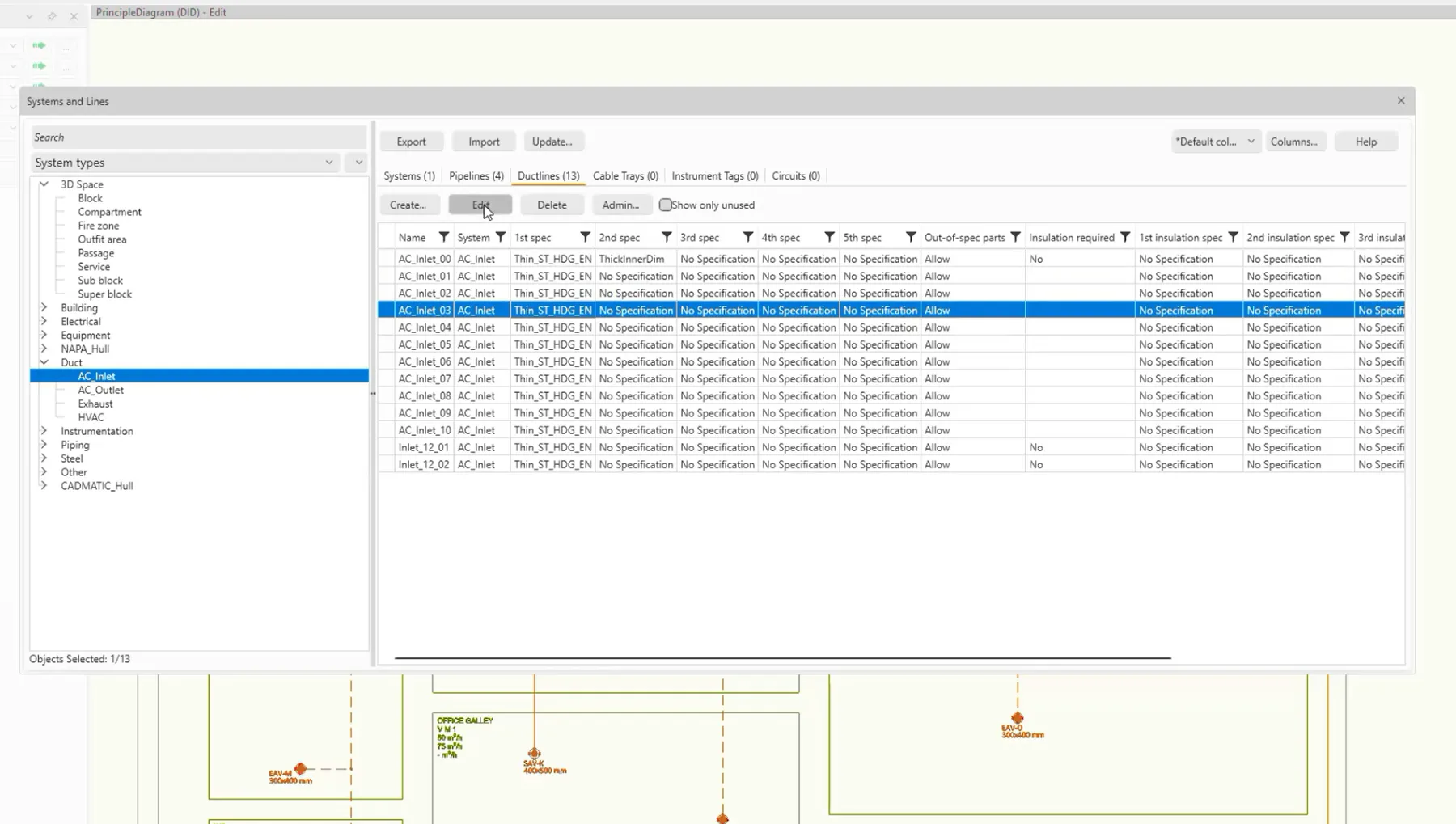
Duct diagrams for shipbuilding
Define ventilation and air-conditioning systems and manage ductlines at the principle level before moving into detailed 3D design. Plan approximate locations of key equipment, ventilation zones, airflow paths, control elements and their relationships suitable for shipbuilding in a clear system-level view.
Hull
New DSTV Profile Export
Export profile cutting files faster from Cadmatic Hull, with the new DSTV Profile Export add-on. Hull builds robot files directly from the profile geometry and the type file definitions, so each file carries the profile contour, cutouts, holes, marking lines and bending lines. Set it up once in about 30 minutes, reuse it across projects, and get accurate DSTV-formatted files without manual mapping. All production information is built from the same model data.
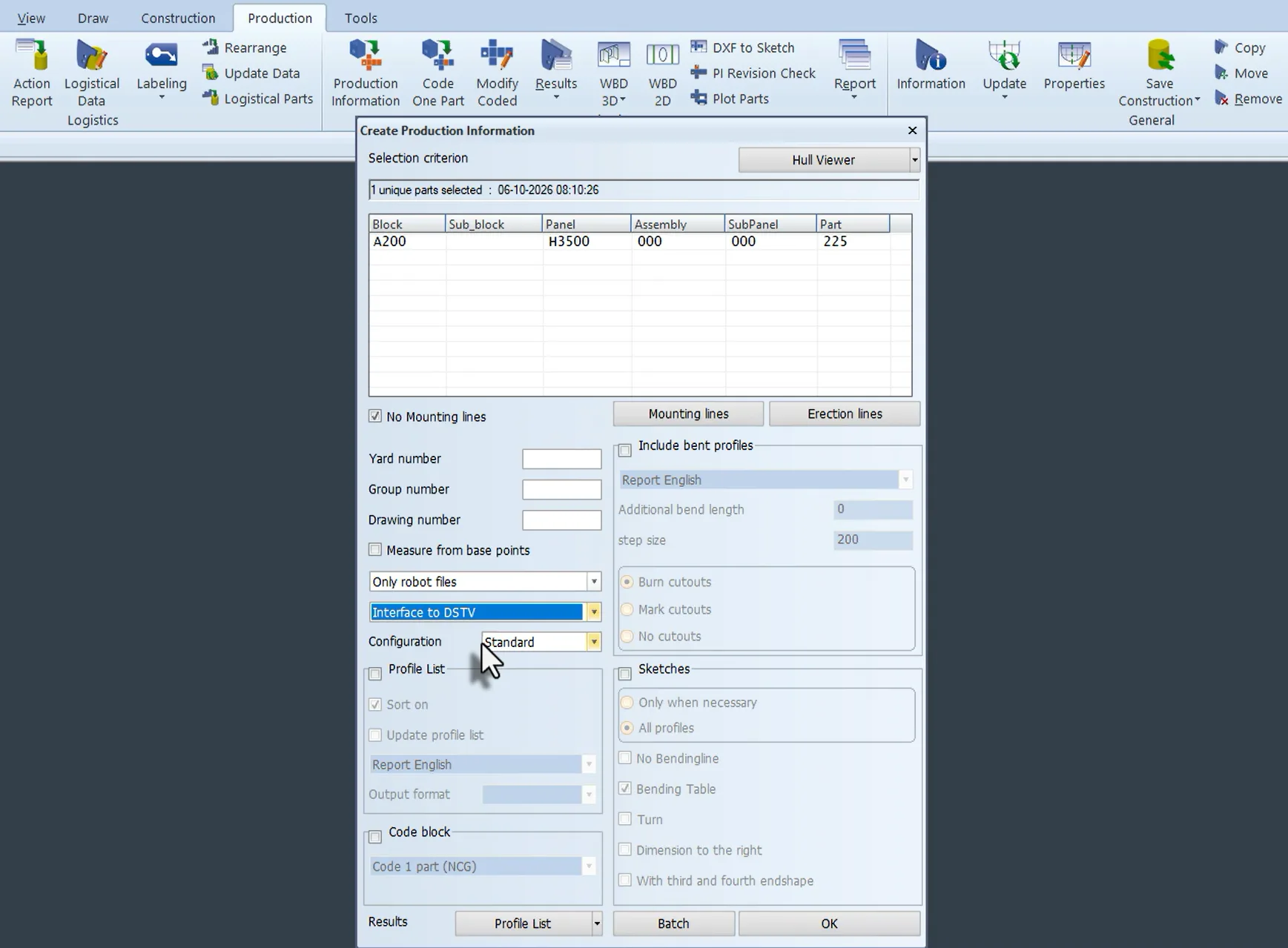
The DSTV Profile Export is available as add-on to Cadmatic Hull with a dedicated subscription.
See check-out and check-in operations at a glance
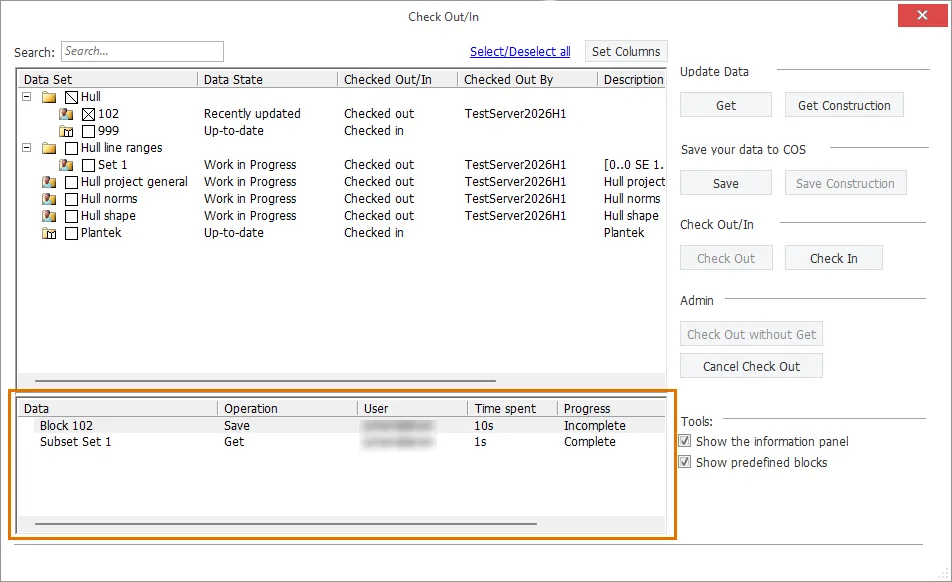
The Check Out/In dialog now shows a new Operations table listing actions of all users by operation type, its state, and who started it. An operation such as Get Construction appears in the table as soon as it starts and displays its progress and status while it runs. The information panel follows the selected row and keeps itself up to date.
This replaces the Refresh button as the dialog refreshes automatically. Less clicking, always up-to-date information.
One sketch for a set of similar profiles
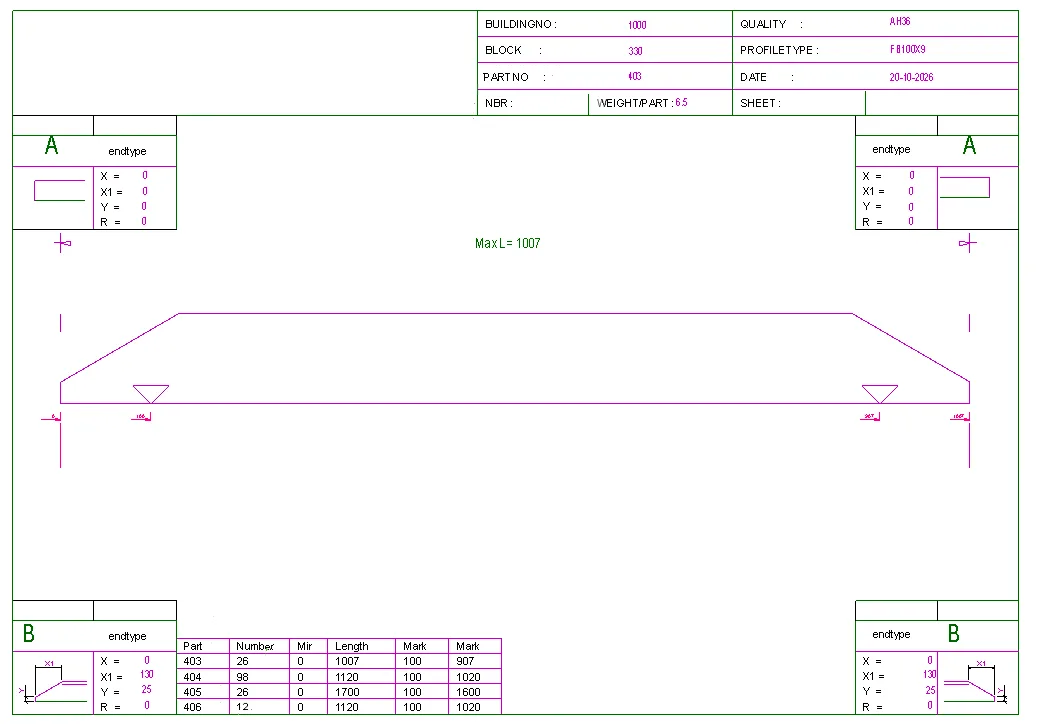
Profile sketches can now include several profiles. Hull shows them together and lists the relevant differences in a comparison table, so the workshop sees similar parts on one sheet. You define the comparison criteria according to your project norms once and the comparison table appears only when more than one profile meets the criteria. The same production information now fits on fewer drawings, so production can follow clearer documentation in the workshop.
Electrical
AI creates custom reports and checks
Create custom reports in Electrical without writing SQL. Describe the information you need in plain language, and Cadmatic AI builds the SQL query for you. The results appear in a clear preview, and the generated query stays visible if you want to check it. Notification rules work the same way. Describe the objects and conditions to look for, and Cadmatic AI helps turn them into project-specific warnings and errors. You get the reports and checks your project needs without learning the database structure or waiting for a specialist.
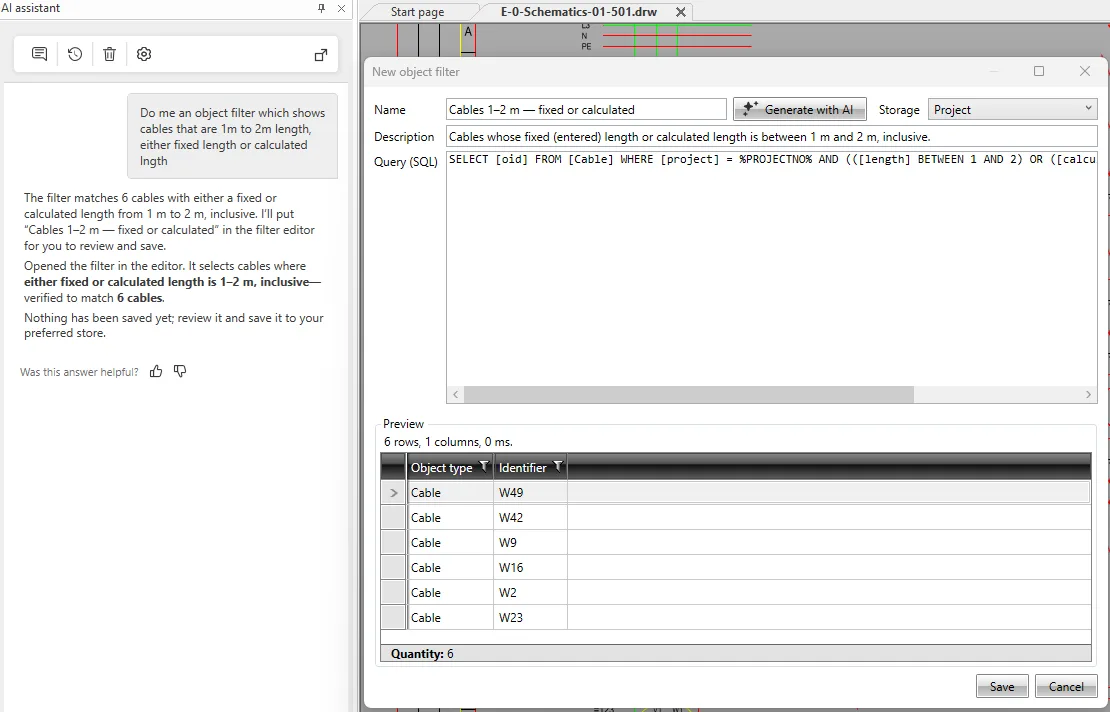
AI functions in Cadmatic Electrical require a subscription or COL license.
Tags and documents from Cadmatic Wave
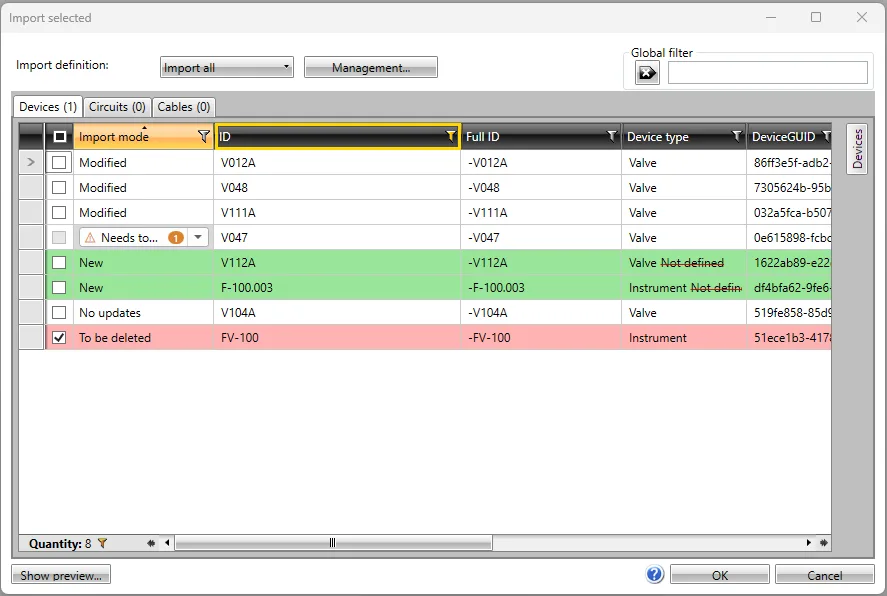
Work with Cadmatic Wave information directly in your Electrical workflow. Requests from Wave arrive with the required document data filled in. Once the document is ready, you publish it to Wave as the reply, which fulfills the request. A new revision requested in Wave for a published document appears as a new request in Electrical. You can now order tags for devices, cables, and circuits in a clean interface. Furthermore, the renewed tag import shows which objects are new, modified, in conflict or due for deletion, so you choose what to import.
Electrical is now faster than ever
Database functions and project opening in Cadmatic Electrical are now noticeably faster. You see the difference most when you open documents, the database tool, the report tool and properties windows, and in functions such as modular generation. In tests, the database tool opened more than twice as fast as before. Electrical also uses less memory in resource-intensive operations. You spend less time waiting for the software and more time on design work.
Sharper lines and clearer text on screen
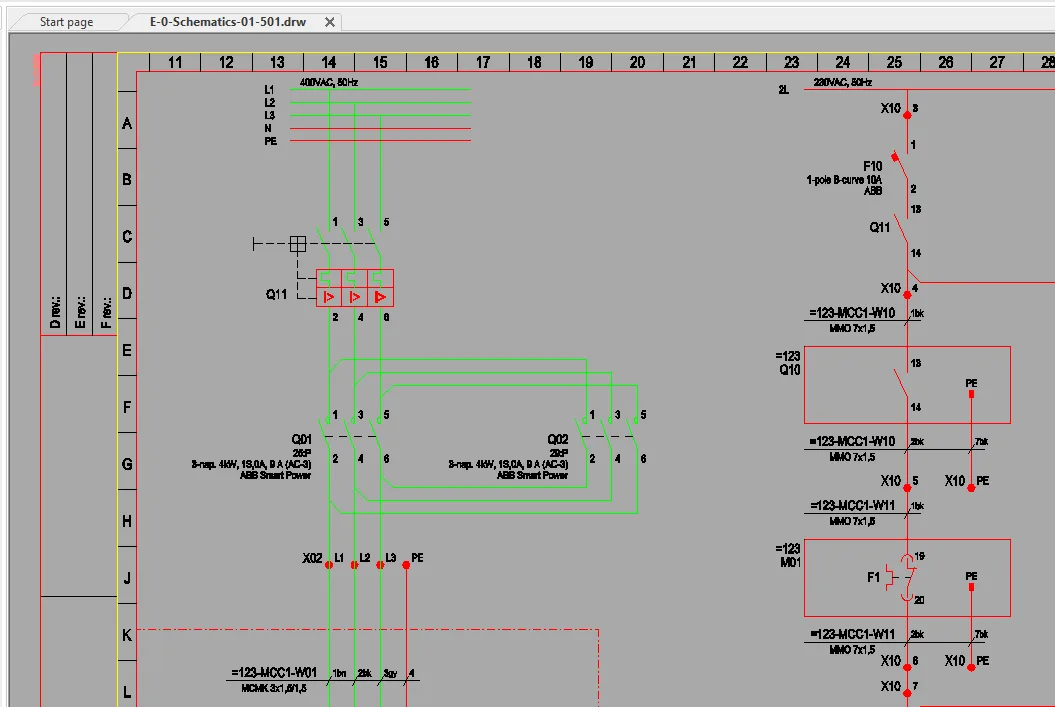
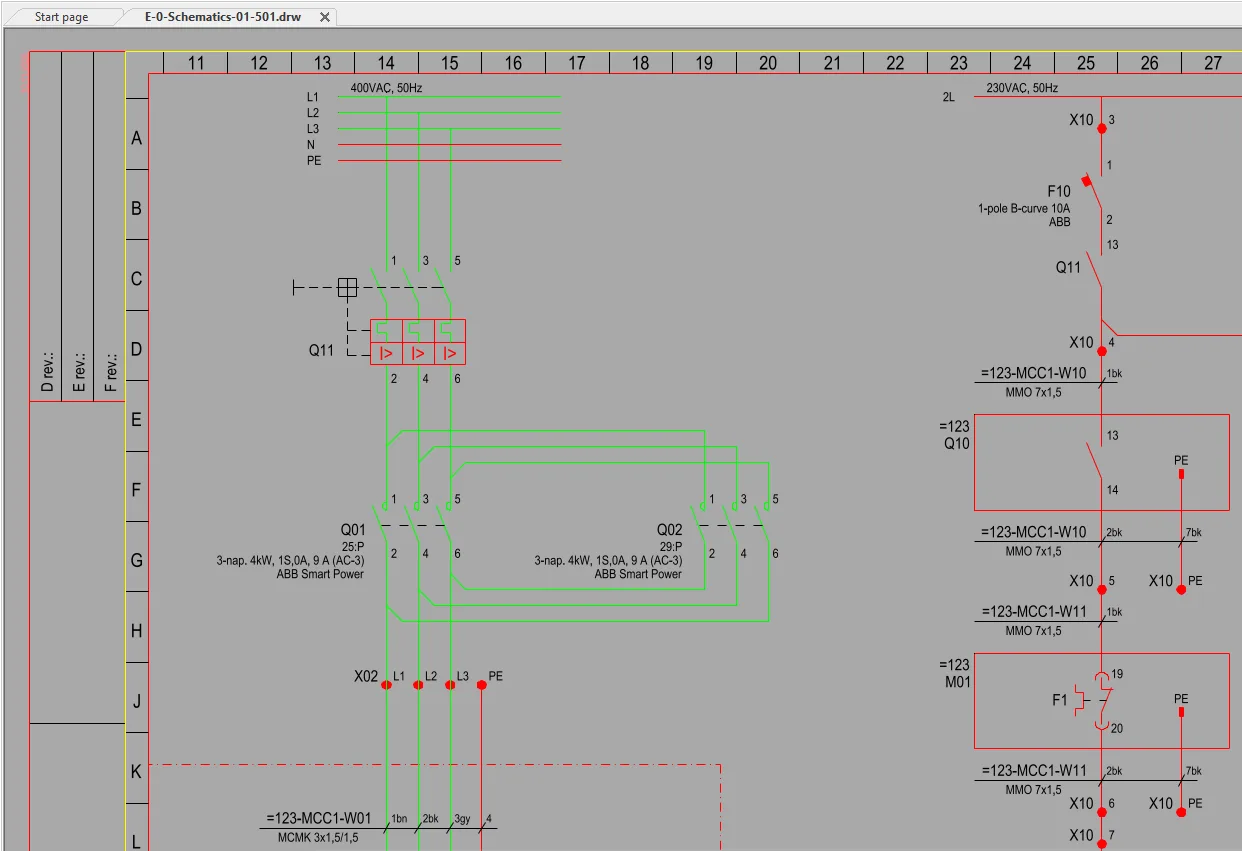
Read your drawings more easily on screen. Lines and drawing elements now display with anti-aliasing so they look clean. Improved TrueType font rendering makes texts clearer. Select and highlight objects and they stand out from the rest of the drawing. Together, these changes give you a cleaner screen for everyday CAD work and drawings that are easier to read. This improvement applies also to Cadmatic Draw.
Draw
Excel tables as native table objects
Bring quantity lists, part lists and revision tables from Excel into Draw as real CAD table objects. A native table object keeps the information structured inside the drawing. Your drawings work better in DWG-based workflows, because tables arrive in the format CAD tools expect.
eShare / eBrowser
A better way to work with technical documents
The redesigned Documents Viewer makes reviewing, navigating, and working with technical documents easier and more efficient. Compare revisions in one view, with new, removed, and modified content clearly highlighted so you can spot changes at a glance. Even moved objects and pages added or removed between revisions are easier to identify.
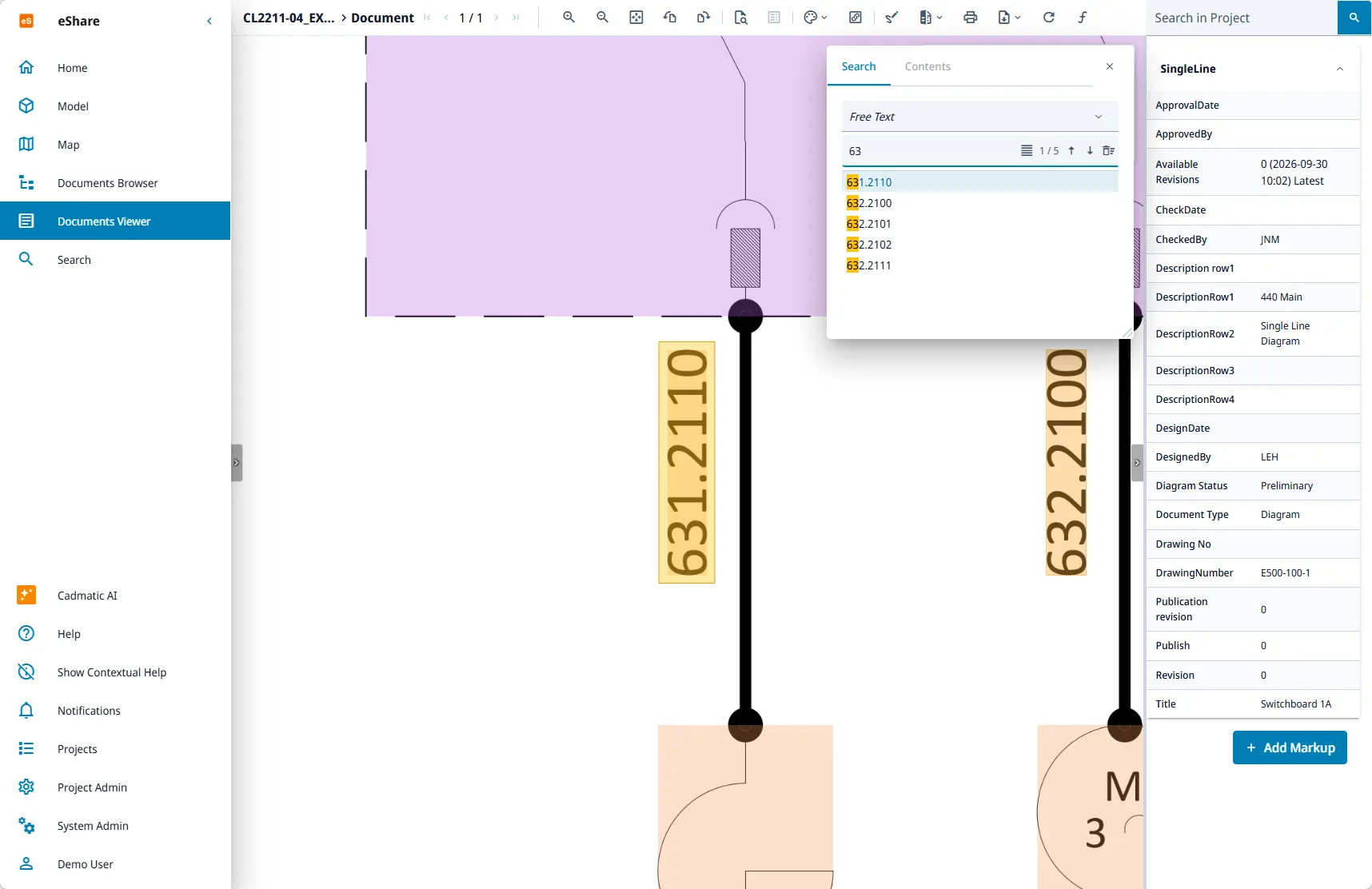
Finding information is just as straightforward. Search for text or specific link attributes, see all matches highlighted directly in the drawing, and navigate long documents using a table of contents and clickable PDF links.
The improved viewer also makes everyday document work smoother with better markup handling, page rotation, keyboard shortcuts, and support for large and complex PDFs.
Together, these improvements make technical documentation easier to review, navigate, and use in your daily project work.
AI for faster information access and 3D exploration
Find information, explore your 3D model and interact with project data using natural language. Cadmatic AI in eShare lets you ask questions and give instructions in a chat, helping you navigate complex information and carry out common tasks without manually searching through multiple views and tools.
Cadmatic AI can search for objects, document text, Smart Points and Markups, retrieve specific object data from connected data sources, and identify links between objects, documents and other project information. It can also navigate directly to relevant objects and documents, helping you find the information you need in its proper context.
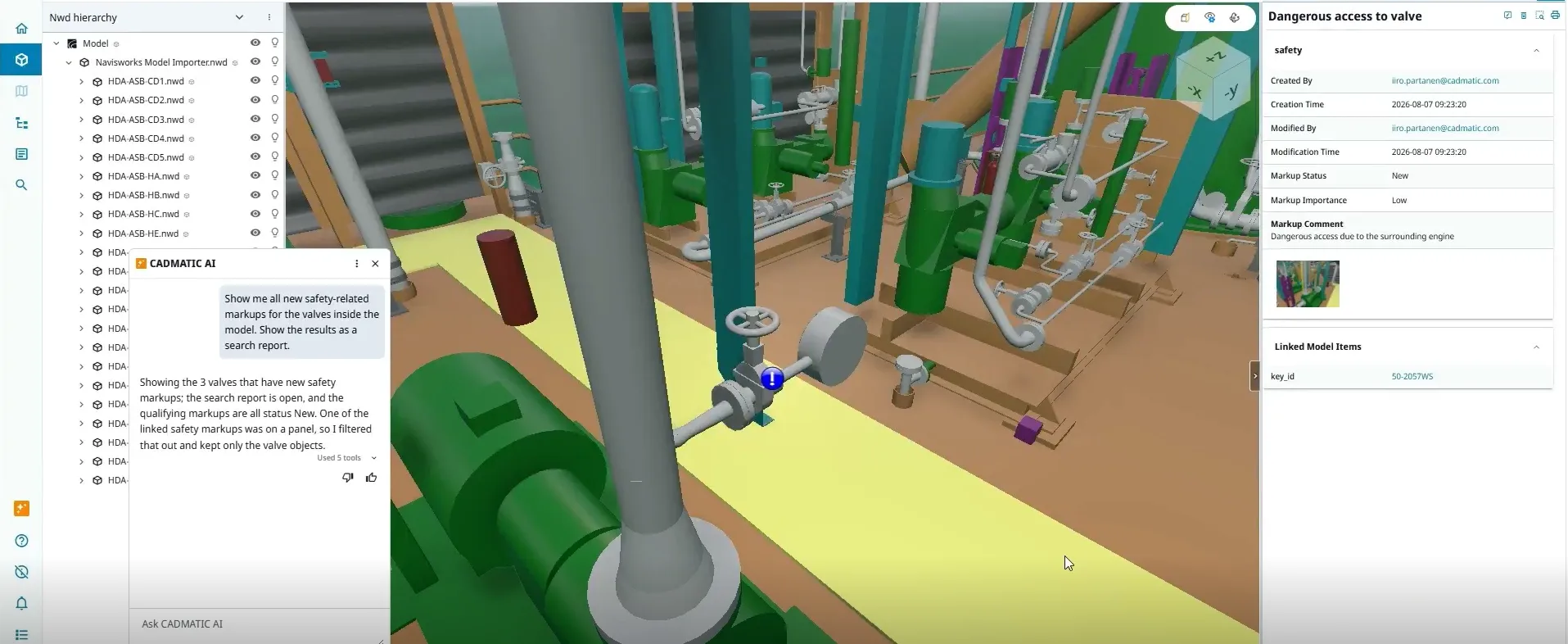
Beyond searching, Cadmatic AI can interact with the 3D view by showing or hiding objects, creating temporary visual styles and hierarchies. You can also generate search reports for specific objects, making it easier to examine relevant information and focus on what matters.
These capabilities help reduce manual navigation and make complex project information easier to explore. By combining information retrieval with direct interaction in the 3D environment, Cadmatic AI helps users find relevant details, understand relationships and work with project data more efficiently.
Cadmatic AI is available to all users with a Cadmatic One License (COL).
Explore point clouds with improved access and visualization
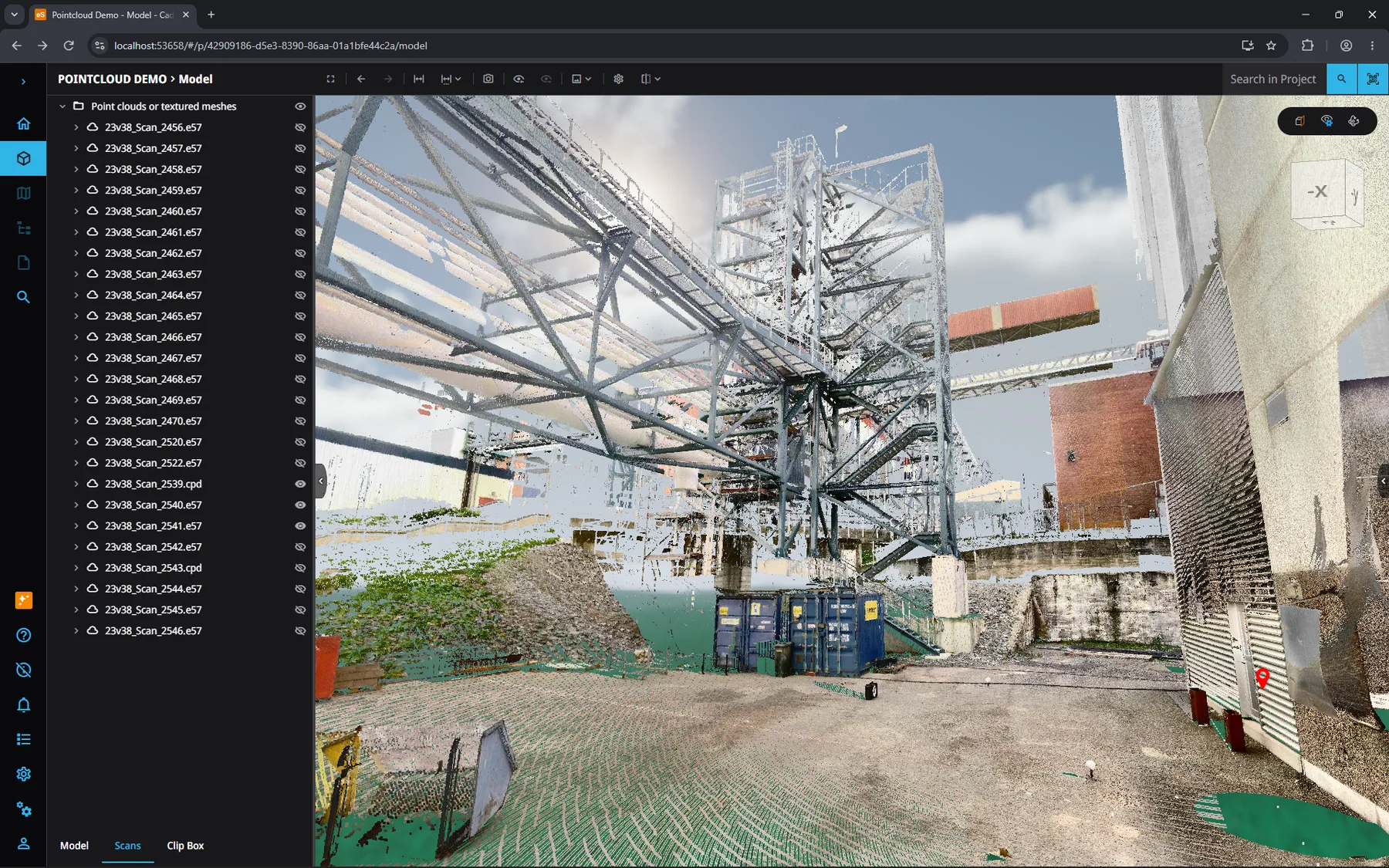
Compare as-built conditions with your 3D model directly in browser-based eShare. Open the Scans tab in Model view to show or hide point clouds alongside the model, without downloading scan files or switching to a separate application.
Point cloud visualization has also been improved in eBrowser and eShare App, with better rendering performance for CPX and CPD point clouds. Two new features help you inspect scan data in greater detail:
- Scale point clouds by distance adjusts point size based on viewing distance, improving the visibility of points and underlying geometry when exploring the model up close.
- Show more clouds when idle displays additional point cloud data when the view is stationary, providing a more detailed view of the scanned environment.
Together, these improvements make point cloud data easier to access, explore and compare with the design, helping you understand existing site conditions in context.
Navigate 3D models more intuitively with the new View cube
Explore 3D models with greater ease using the new View cube and reorganized toolbar in eShare, eShare App and eBrowser. View cube provides a visual way to rotate the model, switch to specific viewing directions and orient yourself in the 3D environment.
Drag the cube to rotate the model around the current view center or click or tap a face or corner to quickly switch to the desired viewing direction. In browser eShare, navigation works with both a mouse and touch, making it easier to explore models on different devices.
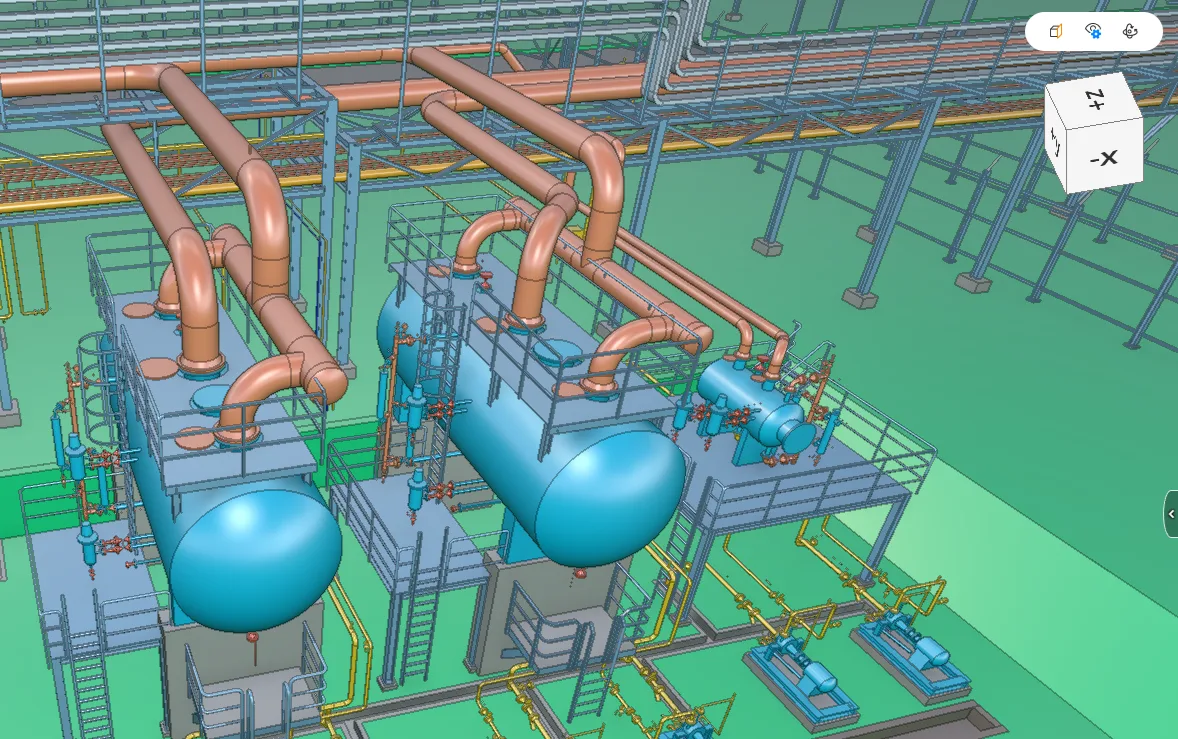
The accompanying toolbar groups key controls into dedicated menus for Clip box, Visualization and Navigation. This clearer layout makes essential tools easier to locate and helps users focus on exploring the model rather than searching for controls.
View cube brings a more visual and intuitive navigation experience to 3D model viewing across the eShare product family.
Materials
Extend material management beyond Piping
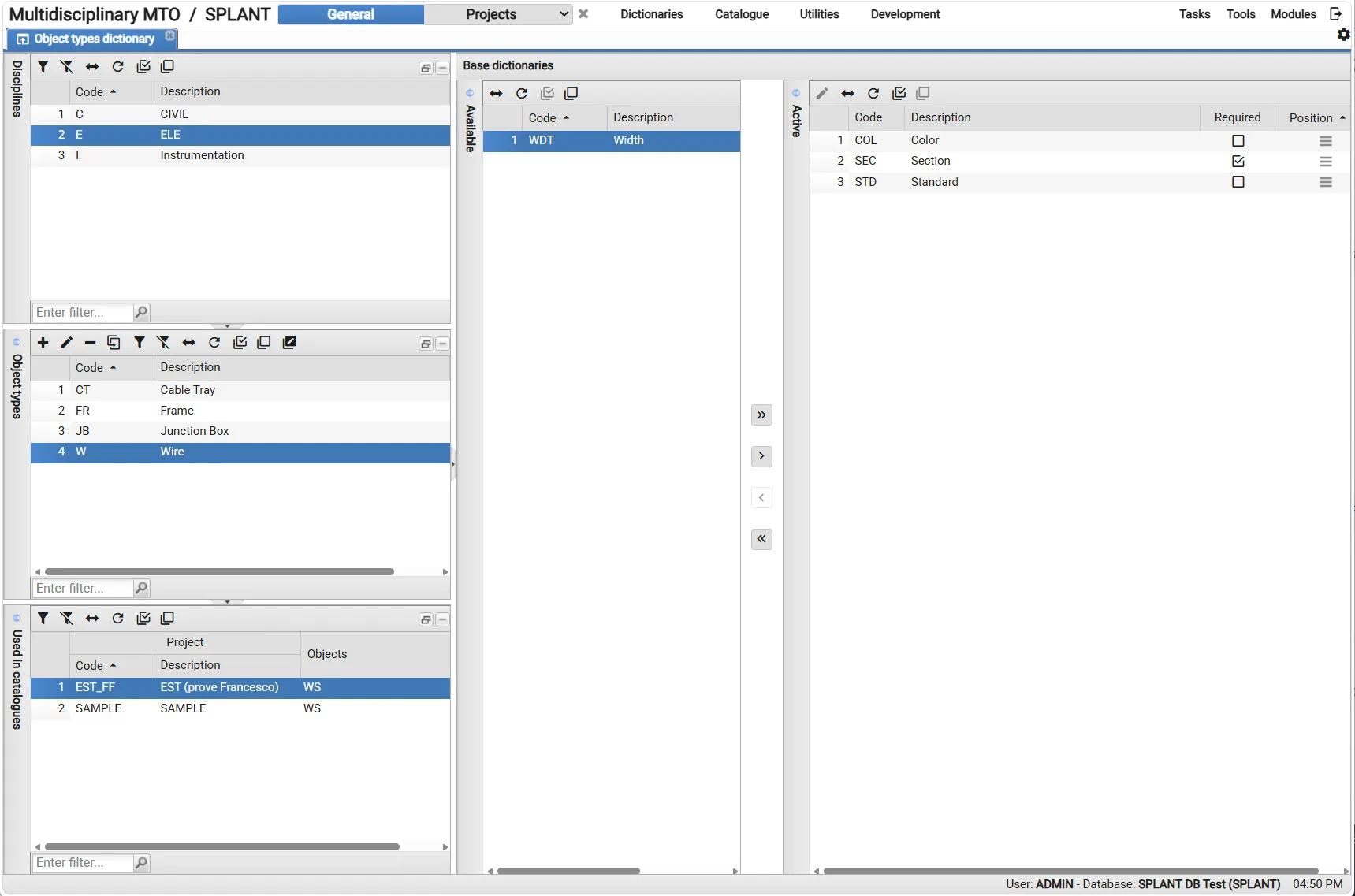
Introducing Multidisciplinary MTO, a new module that brings structured material management to disciplines beyond Piping, including Electrical, Steel Structure, and HVAC.
Define discipline-specific dictionaries, object types, and attributes to build catalogues that reflect the needs of each discipline. The new module lays the foundation for multidisciplinary material management, with quantity take-off and Material Requisitions to follow in later releases.
Create and manage catalogue components more efficiently
Build and maintain project catalogues with greater consistency. Use the guided catalogue creation method or the new generation wizard to create multiple components at once.
General catalogue brings together components generated across projects, helping maintain consistent component identification. New catalogue views organized by discipline and object type make it easier to review components, compare attributes, and identify gaps.
Build structured assemblies for quantity take-off
Organize components into assemblies and sub-assemblies to manage material structures more effectively. Define assembly types and levels to control how assemblies can be nested, and decide which assemblies and components can be inserted directly into MTO.
When an assembly is taken off, its contents can be broken down into individual catalogue components while retaining a reference to the original assembly. This makes it possible to report quantities at different assembly levels as well as by individual component.
Additional improvements
- Keep unit weights consistent: Update project catalogue components with unit weights from the General catalogue in bulk, while protecting project-specific values when needed.
- More flexible catalogue data: Use User Defined Attributes (UDAs) and Composer configurations for catalogue components across non-Piping disciplines.
- Improved Composer configuration: Define fixed field lengths, filler characters, and alignment rules. Composer sequences can also be configured and executed together.
- Validate report templates: Automatically check uploaded report templates for syntax errors.
Engineering
Stay on top of project activity
Get a clear overview of what’s happening in your projects with the new Activity Log. See documents created, saved, published and revisioned, pending revisions, and item changes in one place. Choose a time period, find out who did what and when, and open related documents or revisions directly from the log. You can also export the activity log to Excel for further analysis.
See your project status at a glance
Get a better overview of your project with the new Project Statistics report. View key figures covering project data, items, documents, and project organization in one place. You can also run the report across multiple projects to get a broader picture of project data and activity.
Make datasheet editing more flexible
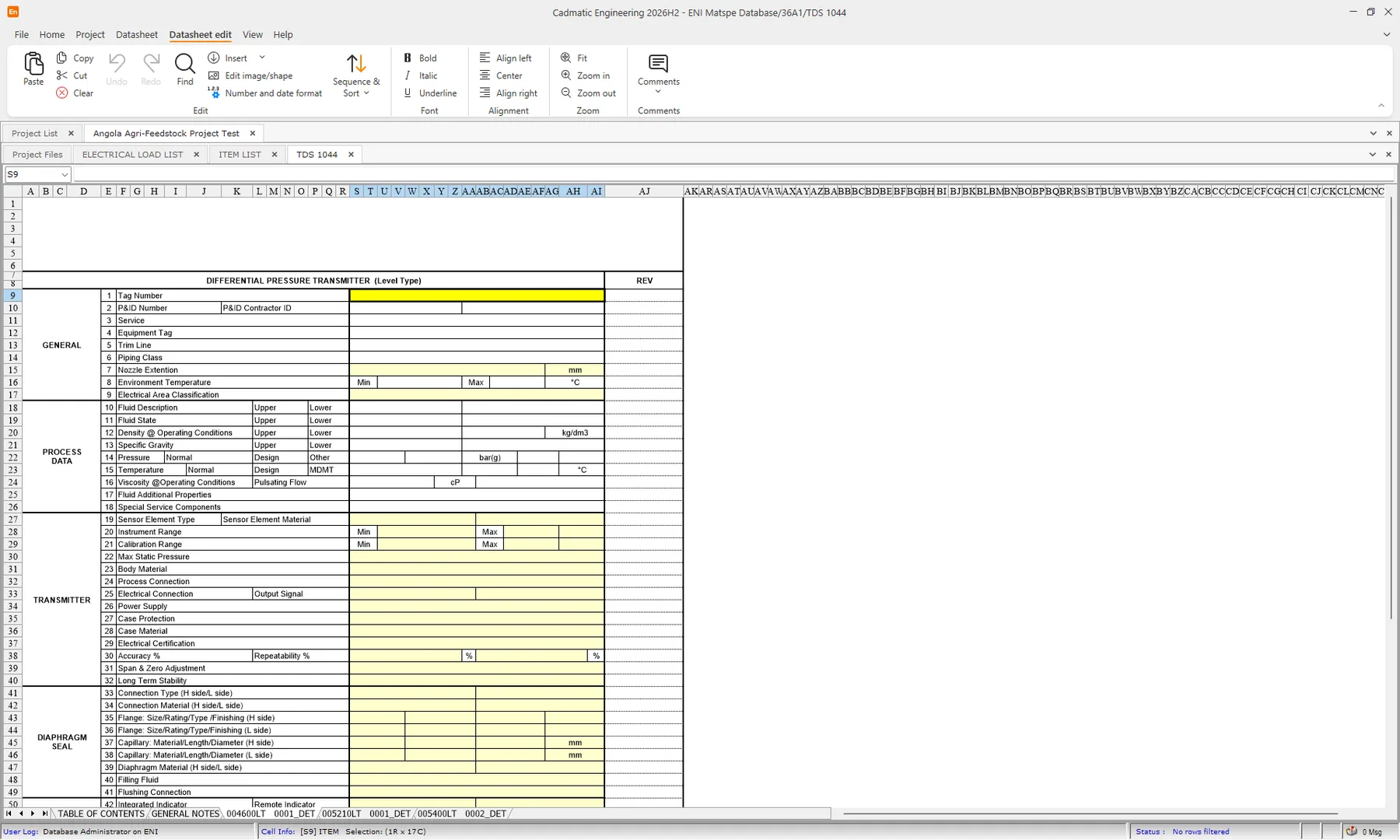
Made a change you want to reverse? You can now use Undo (Ctrl+Z) and Redo (Ctrl+Y) when working with datasheets. Revert or reapply changes, including cell edits, comments, item coding, status changes, and row operations. Up to 100 steps of editing history are available per open datasheet.
Additional improvements
- More flexible data migration: Move data between compatible templates with a guided cell-mapping process. Save and reuse migration settings, and generate reports for further analysis.
- Improved data import and export: Import and export JSON data through Import/Export Layouts. The standard datasheet import has also been enhanced with automatic information matching.
- Refreshed user interface: A modernized interface, updated ribbon toolbars, forms, and login screen, together with the new Cadmatic Engineering branding.
- Other usability improvements: Restore multiple audit values at once, use horizontal mouse scrolling in datasheets, and benefit from improved keyboard navigation.